> ## Documentation Index
> Fetch the complete documentation index at: https://docs.pylon.mortgage/llms.txt
> Use this file to discover all available pages before exploring further.
# Borrower Dashboard Element
> Complete borrower portal for managing in-progress loans
The Borrower Dashboard Element provides a complete solution for borrowers to manage in-progress mortgage loans and communicate with their Pylon loan officer. Once a loan application has been submitted, borrowers use the dashboard to complete required tasks, upload documents, and track their loan's progress through all stages until closing.
## What it does
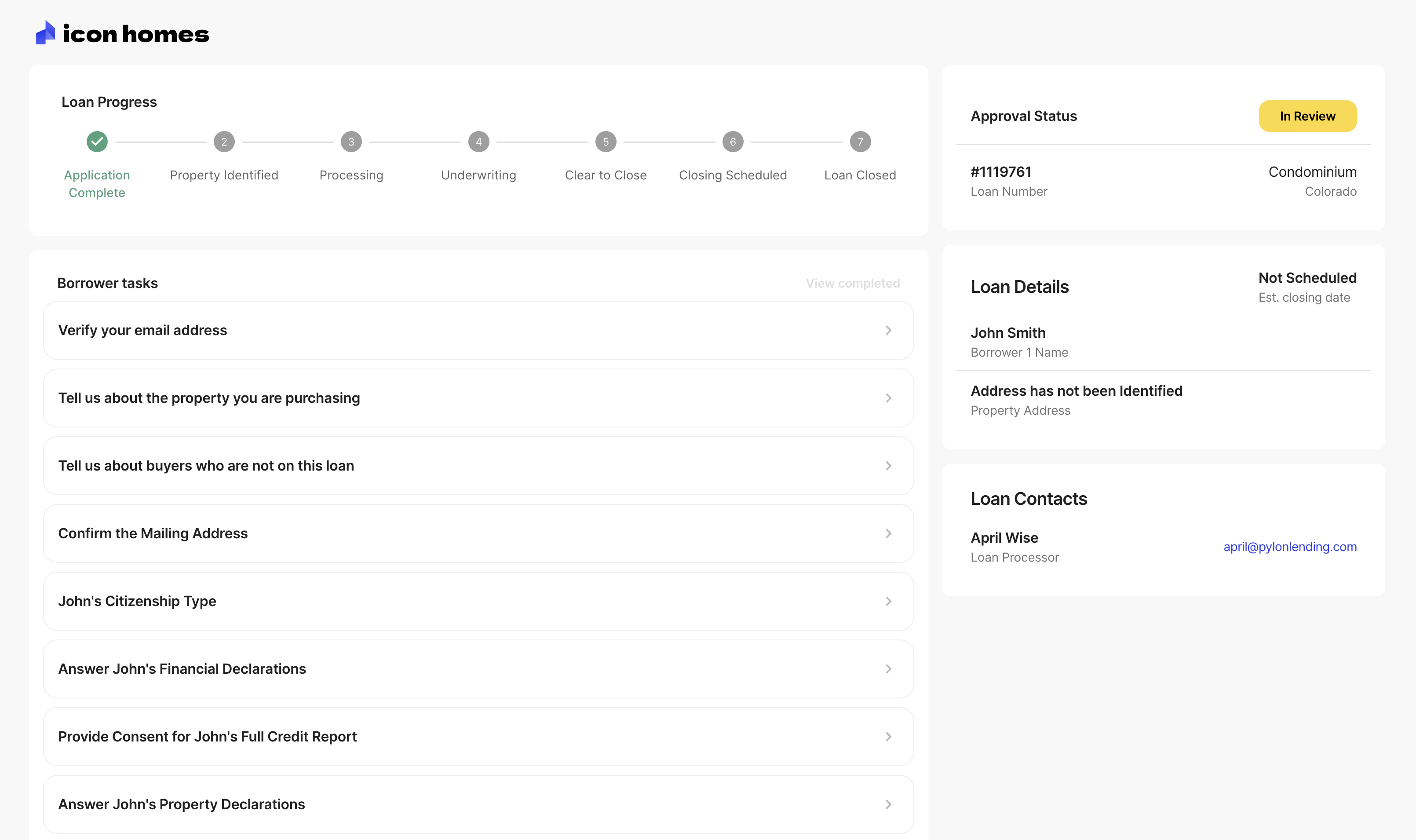
The Borrower Dashboard Element provides a comprehensive loan management experience that enables borrowers to:
* **View loan status and progress** - See current loan stage, approval status, and progress indicators
* **Complete tasks** - View and complete borrower tasks assigned by loan officers, including document uploads
* **Upload documents** - Securely upload required documents like pay stubs, bank statements, tax returns, and other verification documents
* **Communicate with loan officers** - Send and receive messages with assigned loan officers
* **Download documents** - Access and download important documents like pre-approval letters, disclosures, and closing documents
* **Customize pre-approval letters** - Generate and customize pre-approval letters with property addresses and loan amounts
* **Track order-outs** - Monitor the status of third-party services like appraisals and title orders
* **View disclosure status** - See which disclosures have been sent and signed
* **Monitor loan stages** - Track the loan as it progresses through Processing, Underwriting, Conditionally Approved, Clear to Close, and other stages
All sensitive information is handled securely and never exposed to your frontend. The Element communicates directly with the Pylon API using secure authorization leases, ensuring that sensitive data only flows between Pylon's servers and the Element, never through your application's frontend code.
## How it works
The Borrower Dashboard Element is programmatically generated and rendered seamlessly inline. It communicates securely with the Pylon API using the [authorization lease](/elements/setup/authentication) you configure in your backend.
Here's what the Element builds into your application:
 To ensure optimal display, the Borrower Dashboard Element should take up most
of the page, with only your global layout surrounding it. Avoid displaying
other UI elements on the same page to prevent visual conflicts.
## Getting started
Configure your backend to [handle Pylon authorization
requests](/elements/setup/authentication). This is required before using any
Elements.
Add the Pylon Elements library to your project: `bash npm install
@pylonlending/react-elements --save `
Import and configure the Borrower Dashboard Element in your app. See the
[setup guide](/elements/borrower-dashboard/setup) for details.
Optionally customize the [theme](/elements/borrower-dashboard/theming) and
set up [polling](/elements/borrower-dashboard/polling) to monitor loan
status changes.
## When to use
Use the Borrower Dashboard Element when:
* A loan application has been submitted (`submitted: true`)
* You want to show borrowers their in-progress loans
* Borrowers need to complete tasks or upload documents
* Borrowers need to communicate with loan officers
For new or in-progress applications that haven't been submitted, use the [Loan
Application Element](/elements/loan-application/introduction) instead.
## Next steps
* [Set up the Element](/elements/borrower-dashboard/setup) - Integration guide
* [Polling for updates](/elements/borrower-dashboard/polling) - Monitor loan status changes
* [Theming](/elements/borrower-dashboard/theming) - Customize appearance
To ensure optimal display, the Borrower Dashboard Element should take up most
of the page, with only your global layout surrounding it. Avoid displaying
other UI elements on the same page to prevent visual conflicts.
## Getting started
Configure your backend to [handle Pylon authorization
requests](/elements/setup/authentication). This is required before using any
Elements.
Add the Pylon Elements library to your project: `bash npm install
@pylonlending/react-elements --save `
Import and configure the Borrower Dashboard Element in your app. See the
[setup guide](/elements/borrower-dashboard/setup) for details.
Optionally customize the [theme](/elements/borrower-dashboard/theming) and
set up [polling](/elements/borrower-dashboard/polling) to monitor loan
status changes.
## When to use
Use the Borrower Dashboard Element when:
* A loan application has been submitted (`submitted: true`)
* You want to show borrowers their in-progress loans
* Borrowers need to complete tasks or upload documents
* Borrowers need to communicate with loan officers
For new or in-progress applications that haven't been submitted, use the [Loan
Application Element](/elements/loan-application/introduction) instead.
## Next steps
* [Set up the Element](/elements/borrower-dashboard/setup) - Integration guide
* [Polling for updates](/elements/borrower-dashboard/polling) - Monitor loan status changes
* [Theming](/elements/borrower-dashboard/theming) - Customize appearance